

DeNovix DS-Series instruments running Linux OS and all CellDrop Series instruments are capable of exporting data via SMB to a networked folder. For DeNovix DS-Series instruments running Android OS (shipped before March 2021), please see Technical Note 122 for setup instructions.
SMB Export Setup Summary
Required Server and Share Settings:
- Share name set with no spaces or slashes
- File sharing on, SMB sharing on
- Username with no spaces or slashes
- Read / Write permissions set for the appropriate user
- Firewall and network security set to allow file sharing
The network folder should be configured before inputting information on the device. For PC / Windows or Mac users, you may use the sections at the end of this technical note for specific instructions.
Required information to input on the device:
- IP address of the server or computer
- Domain
- Shared folder name (no spaces, slashes, or backslashes)
- Path within the share to the desired subfolder (optional)
- Username of a user with write permissions to the share
- Password (not pin) of the user referenced above
Network Folder Setup on the DeNovix Device
Connect the DeNovix instrument and the server to the same network and subnet via Ethernet or Wi-Fi. Use the Settings app on the DeNovix instrument to configure Ethernet and Wi-Fi connections.
Use the Settings App to select “Network Folders” from the list on the left.
Touch the + icon to open the configuration screen.
Enter the following settings.
- Name: User created name (can be anything)
- Server: Enter the server hostname or the IP address (preferred) of the server or computer
- Domain: Enter the Domain name
- Path: Enter shared folder share name (no spaces, slashes, or backslashes)
- Mount Point (optional): If you are navigating to a subfolder within the share, fill this out with the path in the format subfolder1/subfolder2
- Username: Enter the Username of a user with write permissions to the share
- Password: Login password (not PIN) for the user above
- Touch “Connect” to connect to the network folder.
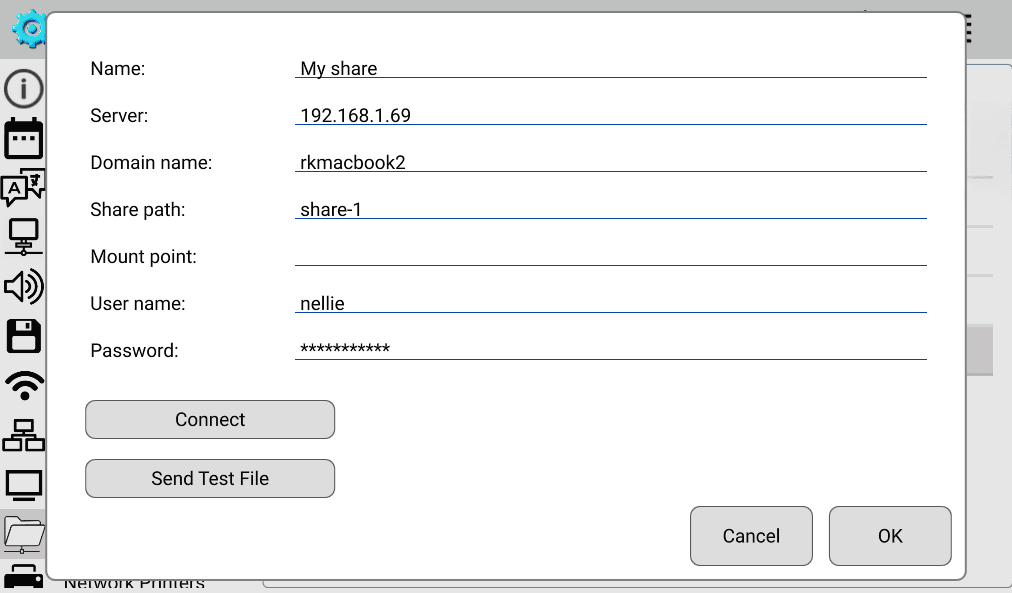
Pressing “Send Test File” will save a text file in the network folder with time / date stamped information.
If the connection reports “fail,” carefully review the Windows network, sharing and firewall settings. If failures persist, contact DeNovix tech support at techsupport@denovix.com with a picture of the setup screen in the Settings app.
Additional Reference: Example Share Setup Procedures
Below are two examples walking through the required steps to set up a shared folder on a PC and a Mac for SMB.
Network Folder Hosted on a PC Running Windows 11:
- Set up a folder somewhere on the drive. The folder name should be one word with no spaces.
- Set the sharing permissions as follows:
- Go to Properties, in the General tab turn off Read-only, then press Apply.
- Go to the Sharing tab in the Properties window, press Share. Set the appropriate user to have Read / Write permission.
- Press Advanced Sharing, check “Share this folder” and verify the share name.
- Press Permissions, then check Allow for all applicable actions for the appropriate user.
- Go to the Security tab and verify the appropriate user has the appropriate permissions.
- Exit the Properties window.
- If connecting to the network via Wi-Fi, go to Network and Internet Settings, then Wi-Fi, then set the network to Private, which sets your PC to “discoverable.”
Network Folder Hosted on a Mac:
- Set up a folder. The folder name should be one word with no spaces.
- From System Settings>General, turn on File Sharing.
- Press the (i) button next to File Sharing to open the Sharing settings window. Add your folder to the Shared Folders list using the + button.
- Set the User permissions as needed.
- Press the Options button, and make sure “Share files and folders using SMB” is turned on.
- If you are using credentials from an administrator account of the Mac to log into the share from the DeNovix instrument, you will need to either:
- Allow full disk access for all users, or
- Set permission for Guest Users to connect to shared folders from the Users and Groups settings window.
- If you are connecting as a standard user, then you can use the settings as indicated through steps 1-5.
14-MAY-2026