

Introduction
DeNovix instruments are compatible with eduroam using login credentials provided by your institution. Watch the video below, or follow the steps outlined in this technical note to connect to the eduroam network.
1. Settings
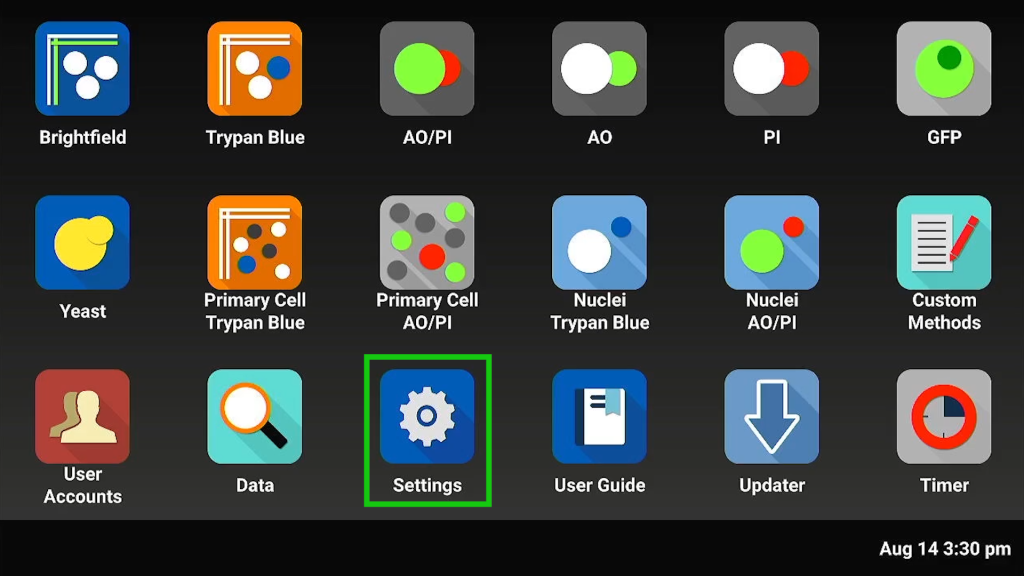
a. Open Settings app
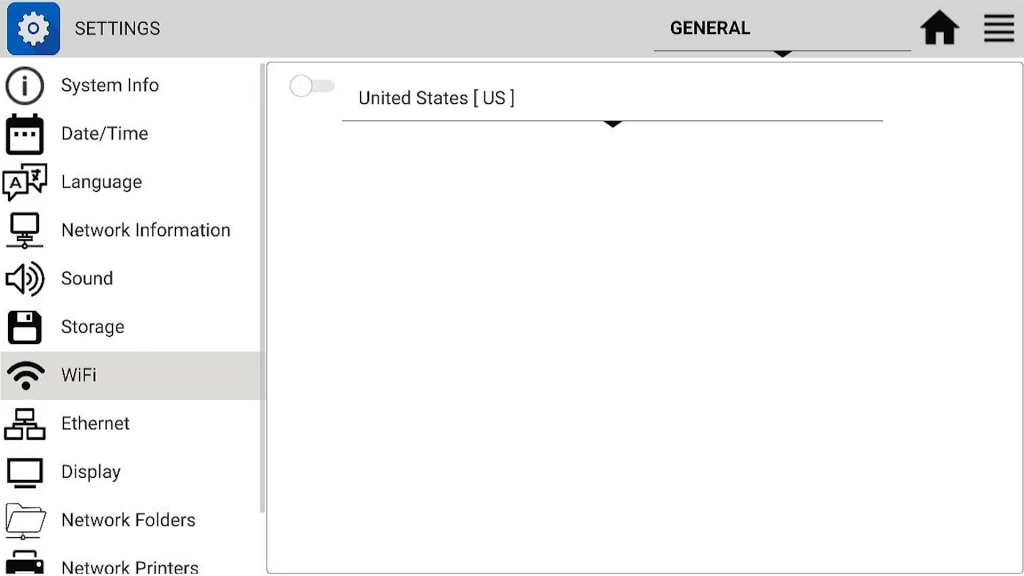
b. Navigate to the Wi-Fi tab
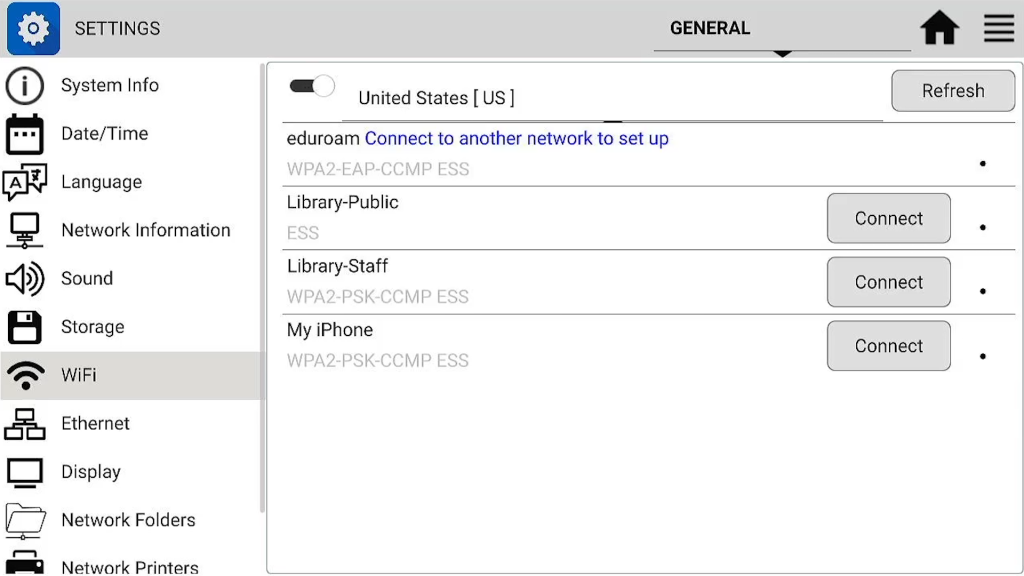
c. Turn on Wi-Fi.
Press “Refresh” if all expected SSIDs are not showing immediately.
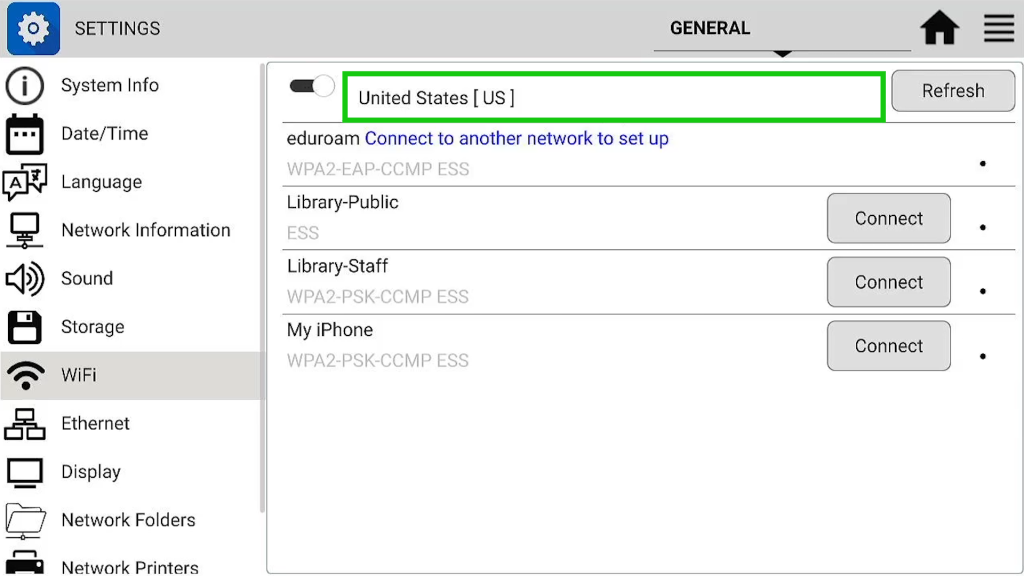
d. Select Country
Use the dropdown at the top of the screen to select the country you are currently in. Wi-Fi frequencies are country specific and the correct country should be selected. If a new country is set, follow instructions and reboot the instrument.
2. Connect to Wi-Fi
a. Connect to Network
Select another network to connect to in order to download the eduroam installer
- Note: Before eduroam can be set up, the instrument first must be connected to another network (hotspot, open Wi-Fi SSID, etc.)
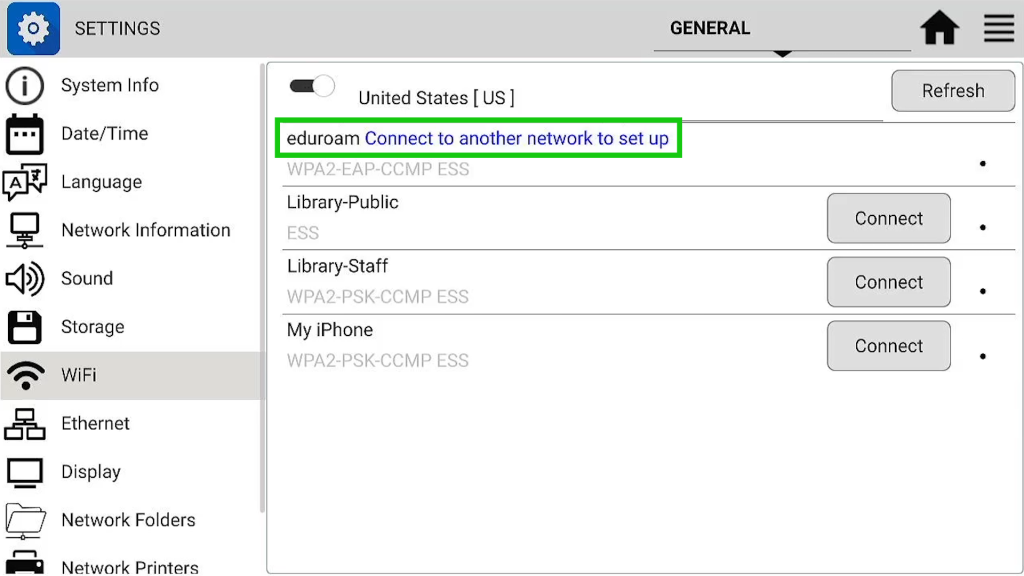
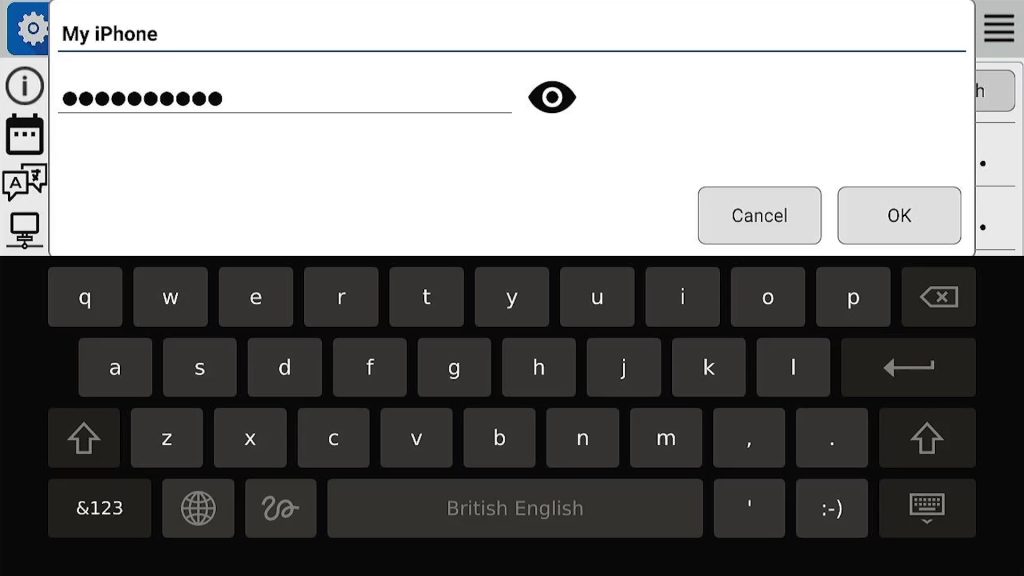
b. Enter Password / Accept Terms
Enter password and press “Ok” or accept the terms of an open Wi-Fi portal.
c. Button next to the eduroam SSID will now say “Set up”
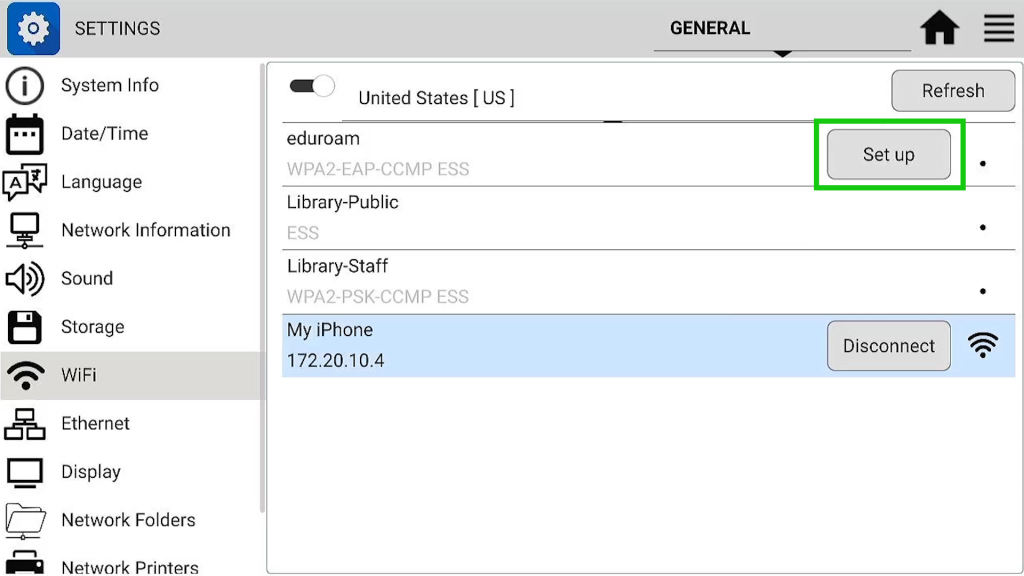
3. Download eduroam Installer
a. Press the “Set up”
Press the “Set up” button next to eduroam, and the eduroam webpage will open.
b. Navigate to Installer Page
Scroll to bottom and select “Click here to download your eduroam® installer”
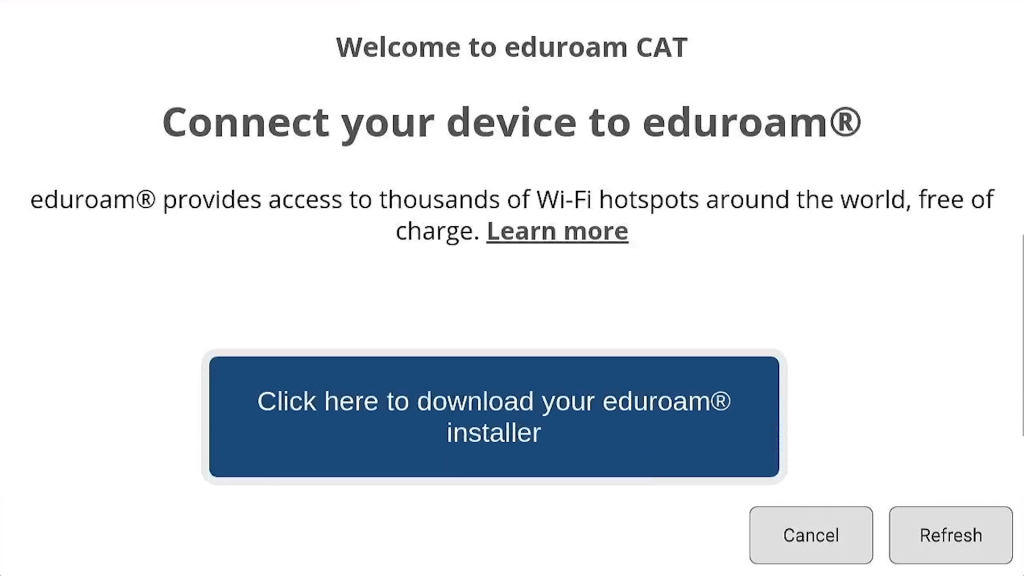
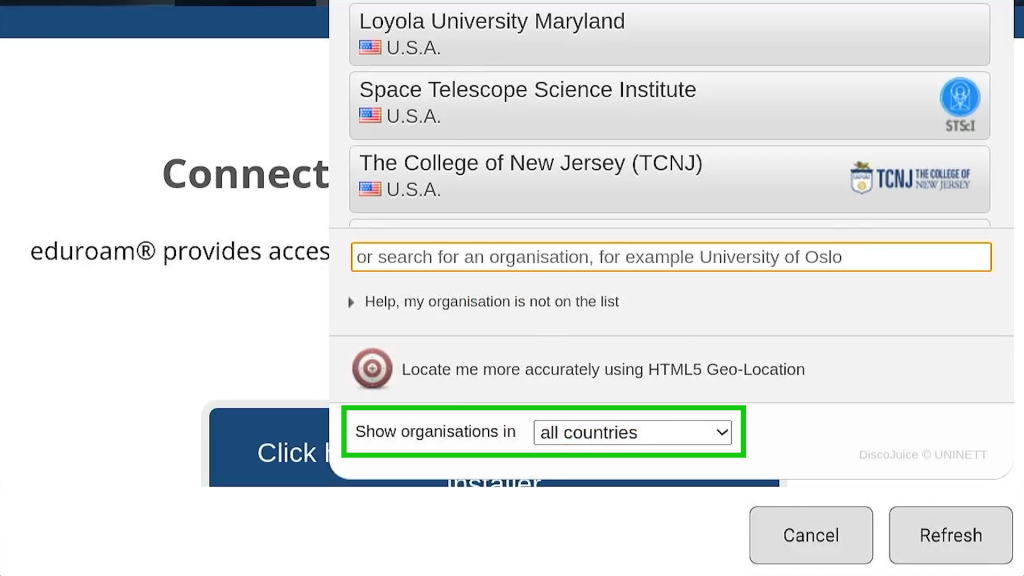
c. Choose Country
Under “Show organisations in…” select your country or “all countries”
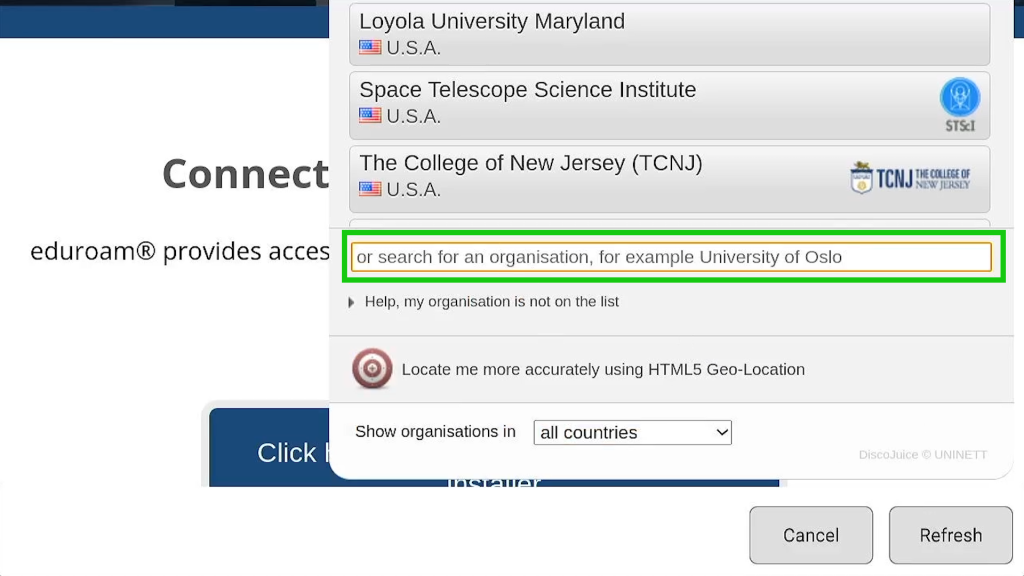
d. Search for Institution
- Note: If the institution does not appear, your university may have a custom installation of eduroam managed by a third party organization. Eduroam activation will not be possible unless the institution shows on the list of selections. The list of supported institutions can also be viewed at https://cat.eduroam.org.
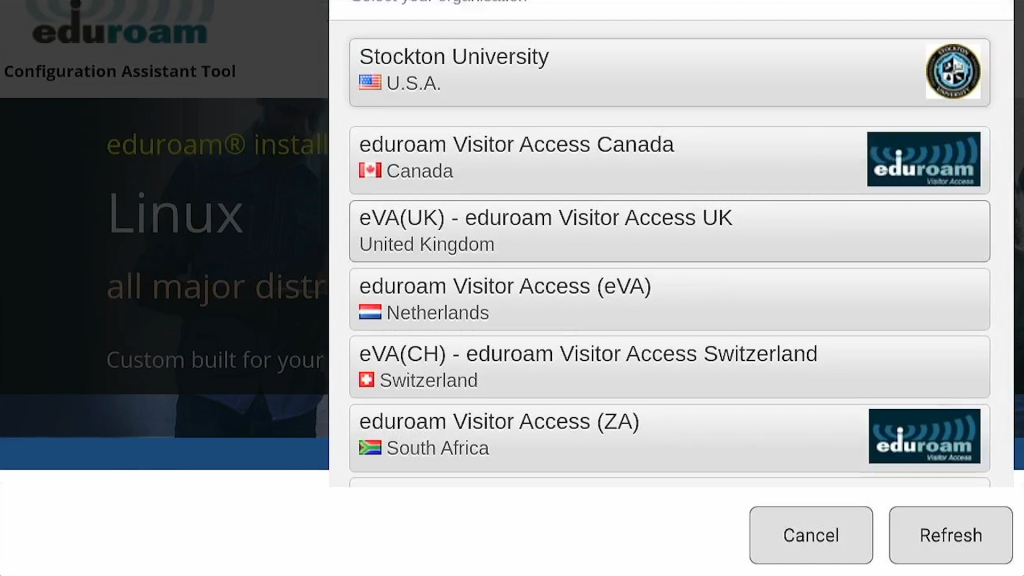
e. Select Institution & Download
Select your institution and navigate to their page. Press the button to downtown the installer for Linux.
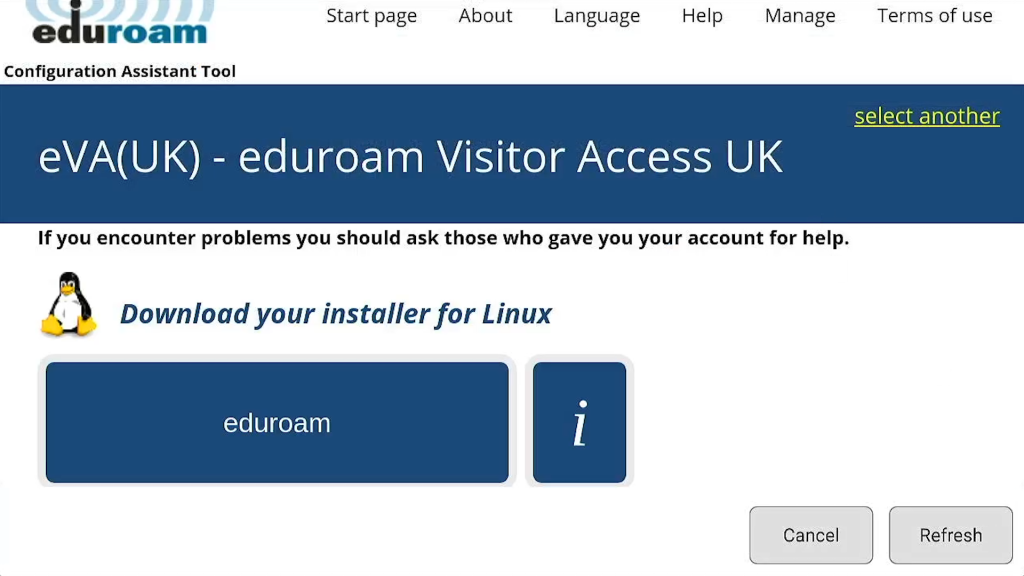
f. Return to Settings
Instrument will automatically return to Settings once the download is complete
g. Button next to eduroam SSID will now say “Connect”
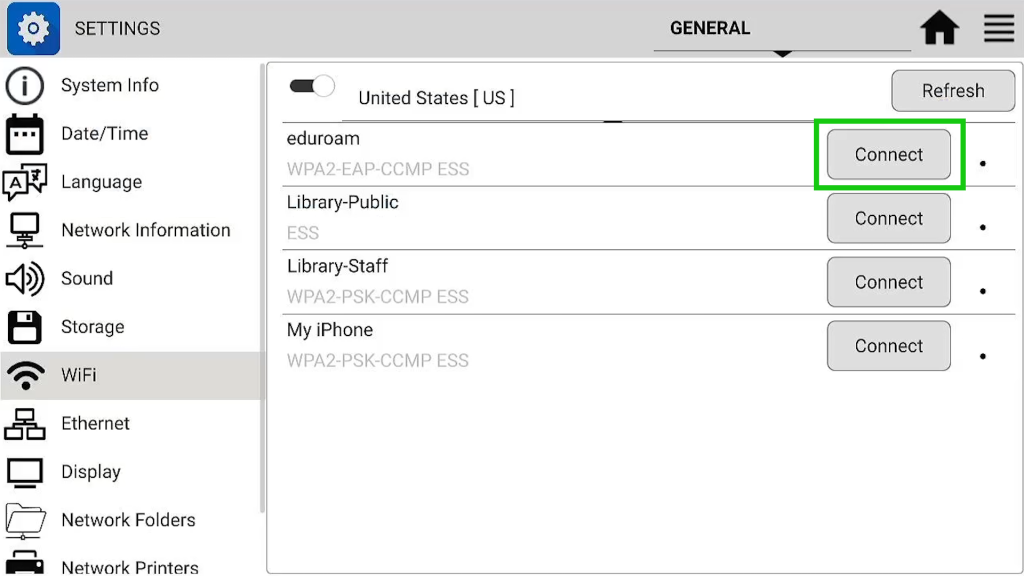
4. Connect to eduroam
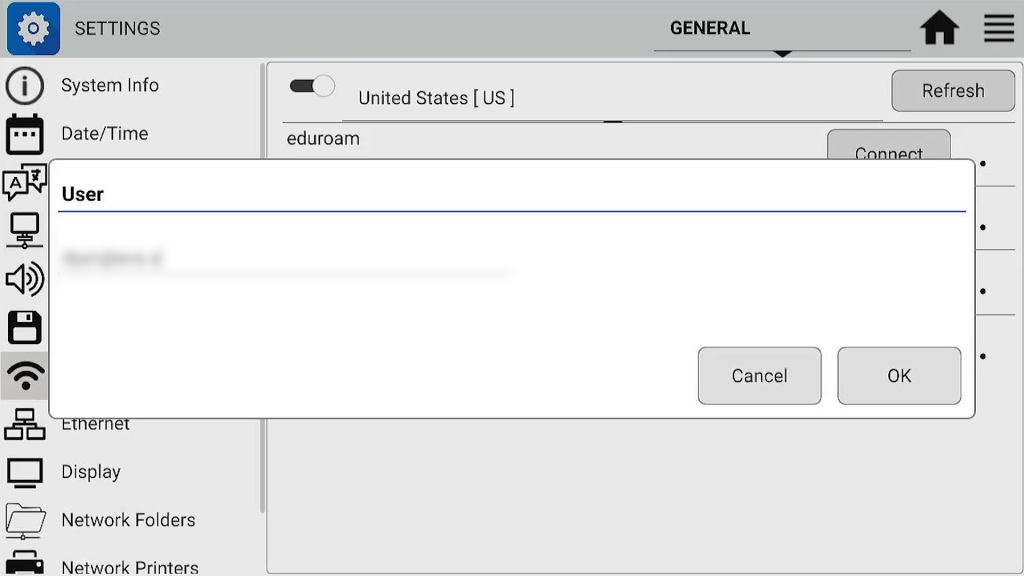
a. Press the “Connect” button next to eduroam
b. Type in the username provided by your institution, then press “Ok”
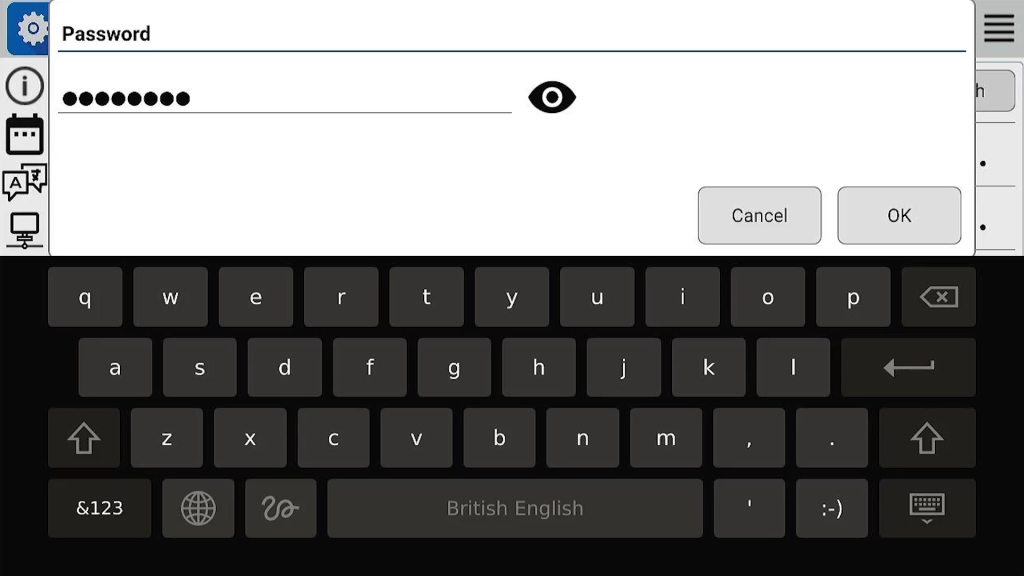
c. Type in the password provided by your institution, then press “Ok”
d. Confirmation Message
A confirmation message will appear to show that eduroam has been connected.
- Note: If connection fails at this step, ensure that you have the correct login credentials from your institution.
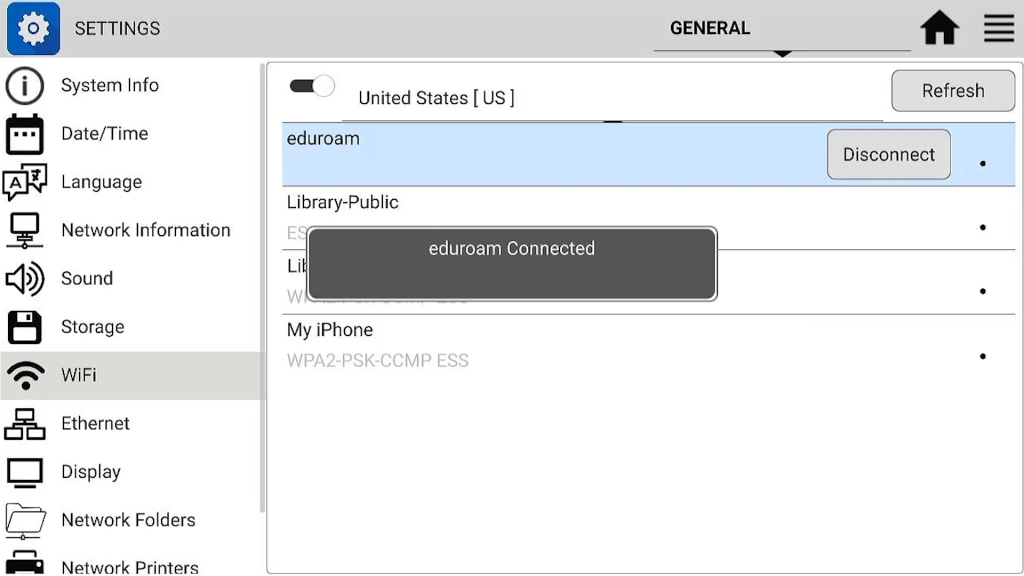
e. Check Wi-Fi Icon
The Wi-Fi icon will appear on the bottom bar of the home screen. When pressed, it will show “SSID: eduroam” at the top
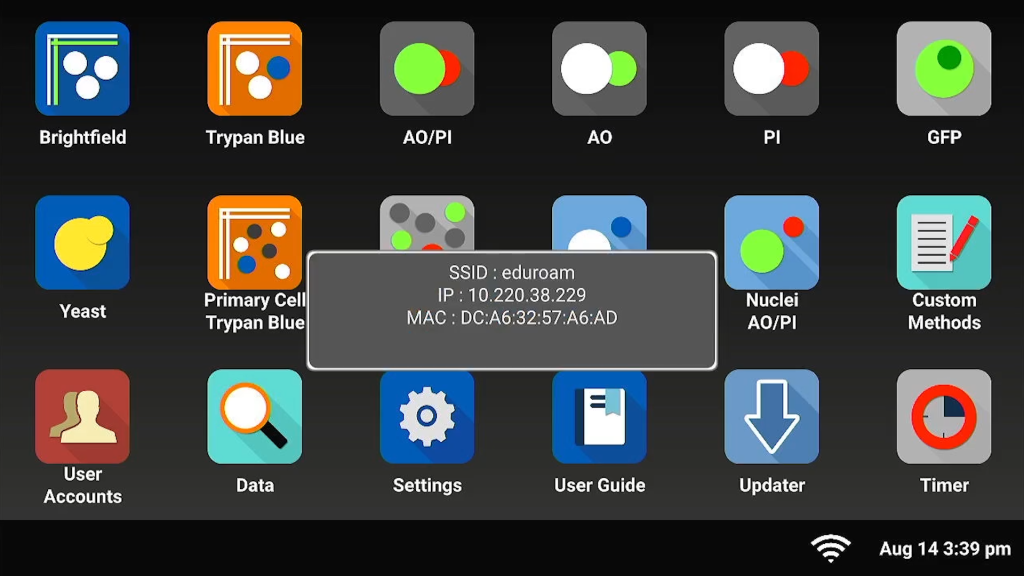
If you have any questions or are having trouble connecting, please contact our technical support team at techsupport@denovix.com.
10-OCT-2023